How to Transcribe Audio and Video to Text Using KKScribe.com
KKScribe
With the AI development in 2026, transcribing text from a voice recording or a video is no longer manual. Whether you are a student capturing a lecture, a professional documenting a high-stakes meeting, or a content creator repurposing video assets, the transcription process has become a cornerstone of modern productivity.
KKScribe is a powerful AI audio and video transcription tool to improve your workflow efficiency. It has up to 99% transcription accuracy and a lightning-fast transcription speed. This guide will walk you through the end-to-end workflow of using KKScribe to convert your media into text, helping you move beyond simple transcripts toward generating summaries, mind maps, and clear action items. By the end of this guide, you will be equipped to master the KKScribe dashboard and integrate AI transcription into your daily professional or academic routine.
The Evolution from Manual Transcription to AI-Powered Efficiency
Historically, creating a transcript was a grueling task that required hours of manual playback, typing, and rewinding. Today, AI transcription has redefined this landscape, offering near-instant results with remarkable accuracy. KKScribe sits at the forefront of this evolution, utilizing advanced machine learning to parse audio files and video files with nuances that traditional software often misses. By automating the heavy lifting, it allows users to focus on what matters: the actual content and insights hidden within the recording.
Why KKScribe is the Preferred AI-Powered Audio/Video-to-Text Tool
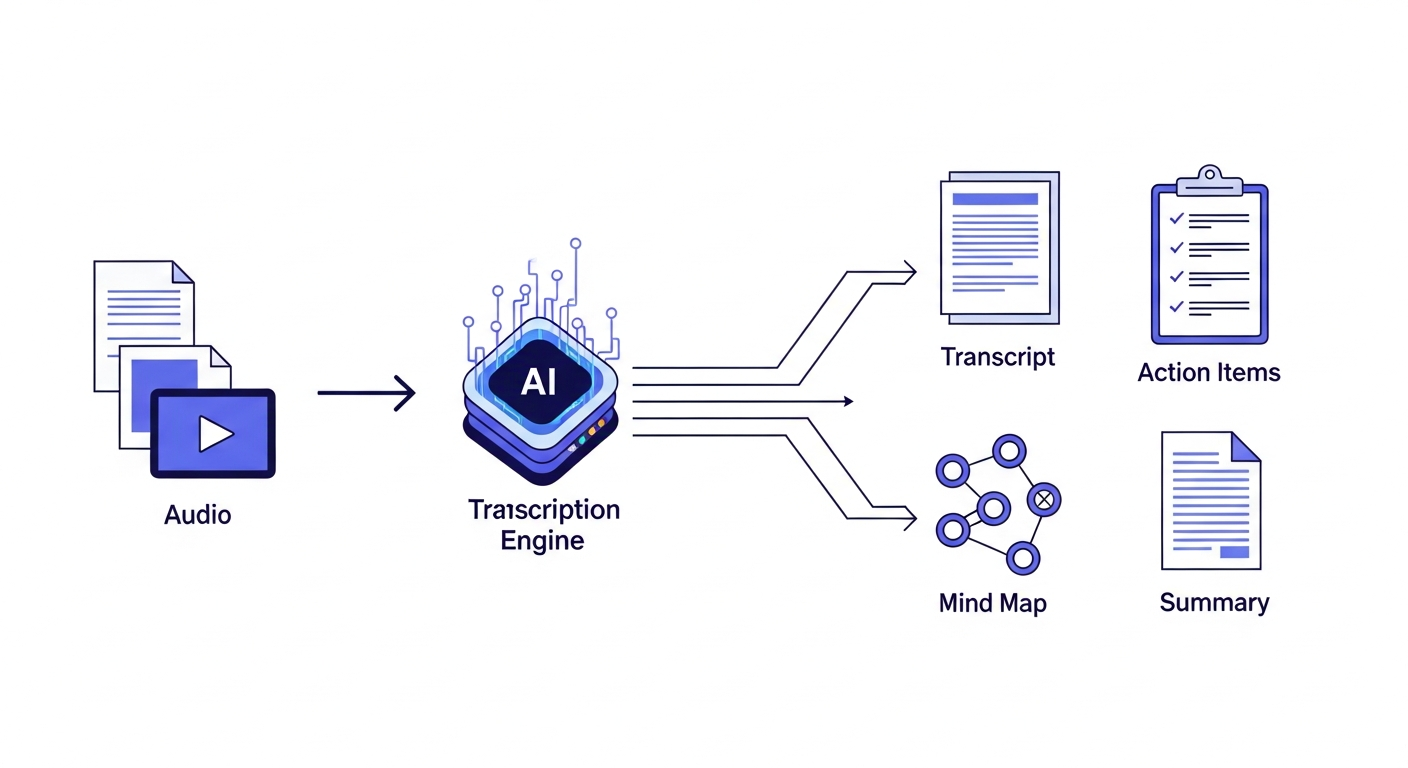
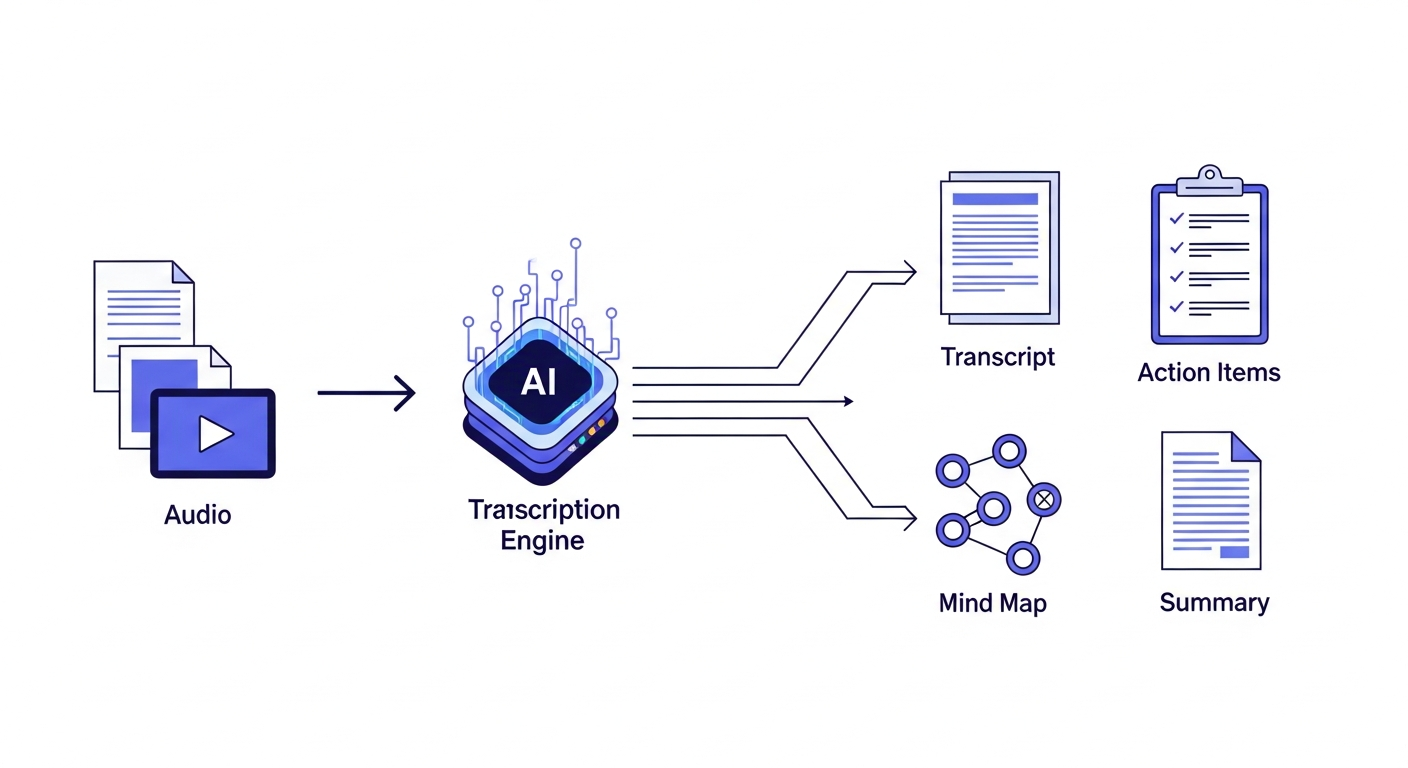
KKSscribe acts as a complete productivity ecosystem, transforming raw audio and video into diverse, actionable formats.
KKScribe distinguishes itself by functioning as a complete productivity ecosystem rather than a basic conversion utility. While many platforms provide raw text output, KKScribe excels at transforming that data into usable intelligence. It is designed for those who view a transcript as the starting point, not the finish line. With its ability to handle various languages and complex audio environments, KKScribe bridges the gap between raw data and decision-making.
Why High-Quality Transcription Matters
High-quality audio-to-text conversion is no longer just for accessibility; it is a primary driver of digital efficiency.
Boosting SEO Visibility and Global Accessibility
Search engines cannot "hear" video content, but they can index text. By generating a high-quality transcript and embedding it into your web pages or video descriptions, you unlock significant SEO potential. Furthermore, providing text versions of your media ensures your content is accessible to global audiences, including those who prefer reading or who are hard of hearing, thereby widening your reach across diverse demographics.
Streamlining Content Creation for Social Media and Blogs
Repurposing a single long-form video file into multiple blog posts, social media captions, or newsletters is a core strategy for modern creators. Using the transcription process provided by KKScribe allows you to identify the most compelling quotes and segments from your media, enabling you to extract value from a single source multiple times without significant extra labor.
Enhancing Learning with Study Notes and Meeting Summaries
For students and executives, information retention is paramount. Transforming a long lecture or a complex meeting recording into a structured summary or a set of mind maps ensures that critical data is retained. By automating the note-taking phase, you can remain fully present during the conversation, knowing that KKScribe is capturing every nuance.
Getting Started: Navigating the KKScribe Dashboard
Creating Your Account and Initial Sign-Up
To begin, visit kkscribe.com. Log in or sign up. Once your account is verified, you will be granted access to your personalized workspace. If you do not want to register an account, KKScribe provides 2 free transcription trials.
Understanding System Requirements and Browser Permissions
KKScribe is a web-based tool, meaning it is compatible with most modern browsers, including Chrome, Edge, and Firefox. Ensure your browser is updated to the latest version to maintain optimal performance. No additional software or plugins are required, though a stable internet connection is essential for uploading large video files efficiently.
An Overview of the Transcription Dashboard Interface
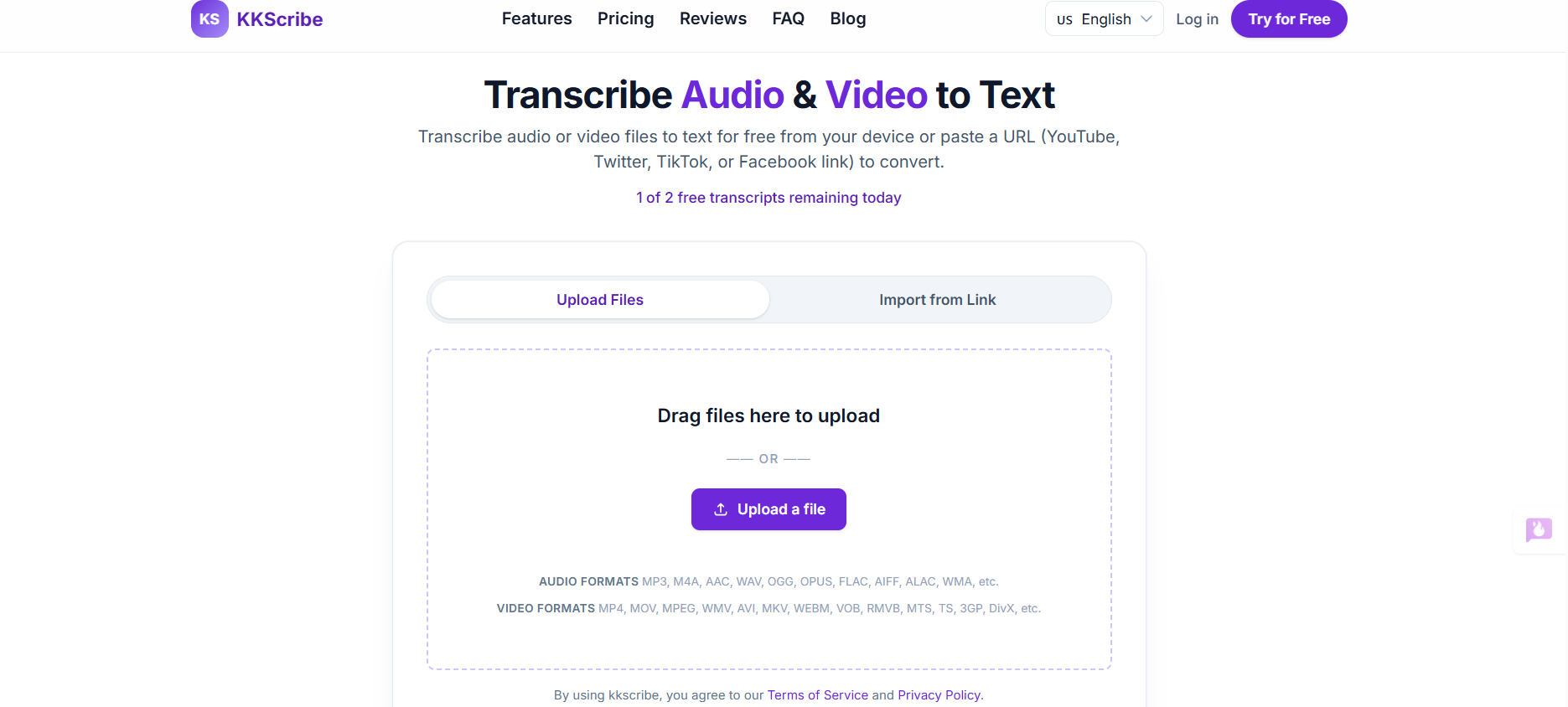
The dashboard is designed for intuition. You will see a central upload area, a progress monitor, and a library section where all your past projects are archived. The interface is clean, minimizing distractions so you can focus entirely on your audio-to-text output.
Supported Formats and Input Sources
Compatible Audio and Video Formats (MPEG, MP3, WAV, MP4)
KKScribe supports a wide array of industry-standard formats. Whether your source material is a compressed MP3 file or a high-definition MP4 video file, the platform handles the conversion seamlessly, ensuring no loss in the underlying content's clarity.
Working with Local Media Files and Batch Uploads
The platform supports batch processing, allowing you to upload multiple files simultaneously. This is particularly beneficial for professionals managing large archives of audio files who need to convert them into text without the bottleneck of individual uploads.
Transcribing YouTube Links and Remote Media URLs
One of KKScribe’s most powerful features is its ability to ingest YouTube links directly. Instead of downloading a video to your computer, you can simply paste the URL, and the platform will handle the extraction and transcribe it directly, saving you time and local storage space.
Step-by-Step Guide: Transcribing Your First File Using KKScribe
Step 1: Uploading Your Audio or Video File
Simply drag and drop your file into the dashboard or click the "Upload" button to select from your local device.
Step 2: Selecting Language Detection and Transcription Settings
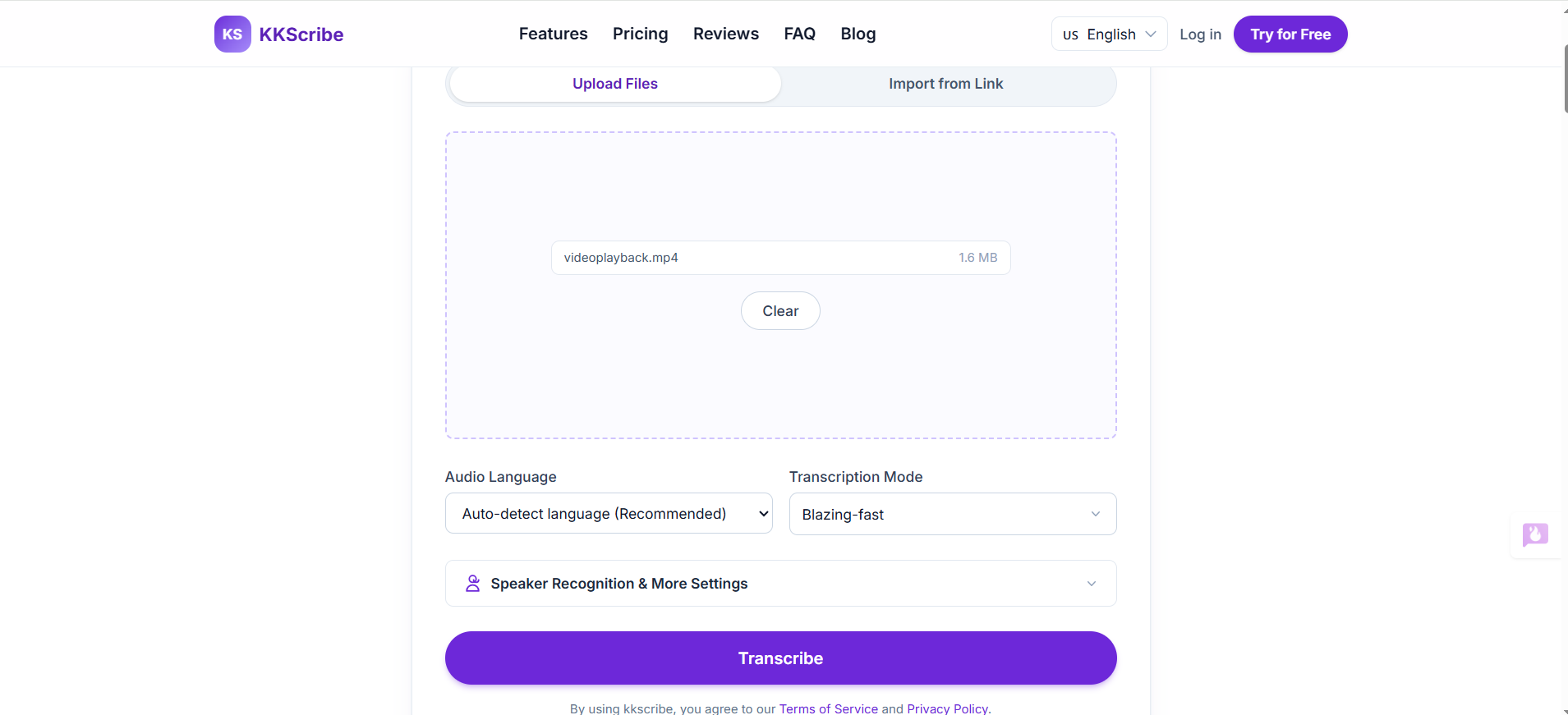
KKScribe will auto-detect your audio languages, and we recommend you do not choose the language. Before hitting "Transcribe," ensure the desired transcription mode is correctly selected. If you have multiple speakers in the audio or video, remember to choose speaker recognition. KKScribe will label them as Speaker 1 or Speaker 2 when the speaker changes.
Step 3: Initiating the Transcription Process with the Transcribe Button
Once your settings are dialed in, press "Transcribe." The system will queue your file, and the AI will begin processing the audio tracks, separating speech from background noise.
Step 4: Reviewing the Progress and Transcription Speed
A progress bar will indicate the status of your task. KKScribe is optimized for speed, delivering accurate results even for hour-long recordings in a matter of minutes.
Optimizing Accuracy: Best Practices for High-Quality Output
Managing Audio Quality and Background Noise
While the AI is powerful, clean audio yields better results. If possible, record in a quiet environment. If background noise is unavoidable, KKScribe’s noise-reduction algorithms are designed to isolate speech, but minimizing interference remains the best path to success.
Ensuring Clear Speech Recognition with Proper Microphone Input
When recording your own content, use a dedicated microphone rather than a built-in camera mic. This simple change significantly impacts the clarity of your transcript and reduces the need for manual post-editing.
Handling Multiple Accents and Technical Terminology
If your audio contains specific industry jargon or diverse accents, use the project settings to prime the engine. Providing context helps the system recognize complex terms, ensuring higher fidelity in the final Word or text document.
Beyond the Transcript: Leveraging KKScribe’s AI Intelligence
Speaker Recognition and Precise Speaker Labeling
KKScribe goes beyond simple text by identifying distinct voices. With precise speaker labeling, you can easily track who said what in a transcript, which is invaluable for meetings and interviews.
AI Summaries and Key Questions Extraction
Don't just read—understand. KKScribe has the AI summary function. You can generate summaries that capture the essence of your audio-to-text file, highlighting key points and extracting important questions that require follow-up.
Generating Action Items for Meeting Recordings
Powered by Google AI, you are able to generate a to-do list for meeting recordings. For business users, the "Action Items" feature is a game-changer. You can pull tasks from your meeting discussions, turning a passive recording into a structured to-do list.
Visualizing Concepts with AI-Generated Mind Maps
Finally, you can visualize the logic of your audio. KKScribe’s AI creates mind maps from your transcripts, allowing you to see the relationships between concepts and arguments at a glance.
What's Next?
You have now mastered the workflow for transforming raw media into actionable intelligence. By utilizing KKScribe to transcribe your content, you are saving hours of manual labor and gaining deeper insights. To maximize your results, begin by uploading your next project to the dashboard, testing the AI-generated summary feature, and exporting your first set of structured meeting notes into Word. Whether for content creation, study, or corporate communication, KKScribe is now your primary engine for productivity. Start your first free transcription now!